> For the complete documentation index, see [llms.txt](https://docs.mercuri.cx/llms.txt). Markdown versions of documentation pages are available by appending `.md` to page URLs; this page is available as [Markdown](https://docs.mercuri.cx/features/flows.md).
# Flows
**Flows** in Mercuri allow you to automate actions based on events happening in your store or platform.
For example:
* Send a WhatsApp message when a **new order is created**
* Send reminders when a **booking is scheduled**
* Follow up when a **cart is abandoned**
Instead of manually sending messages or notifications, **Flows automatically trigger actions when specific events occur.**
***
### How to Create a Flow
#### Step 1: Open Flows
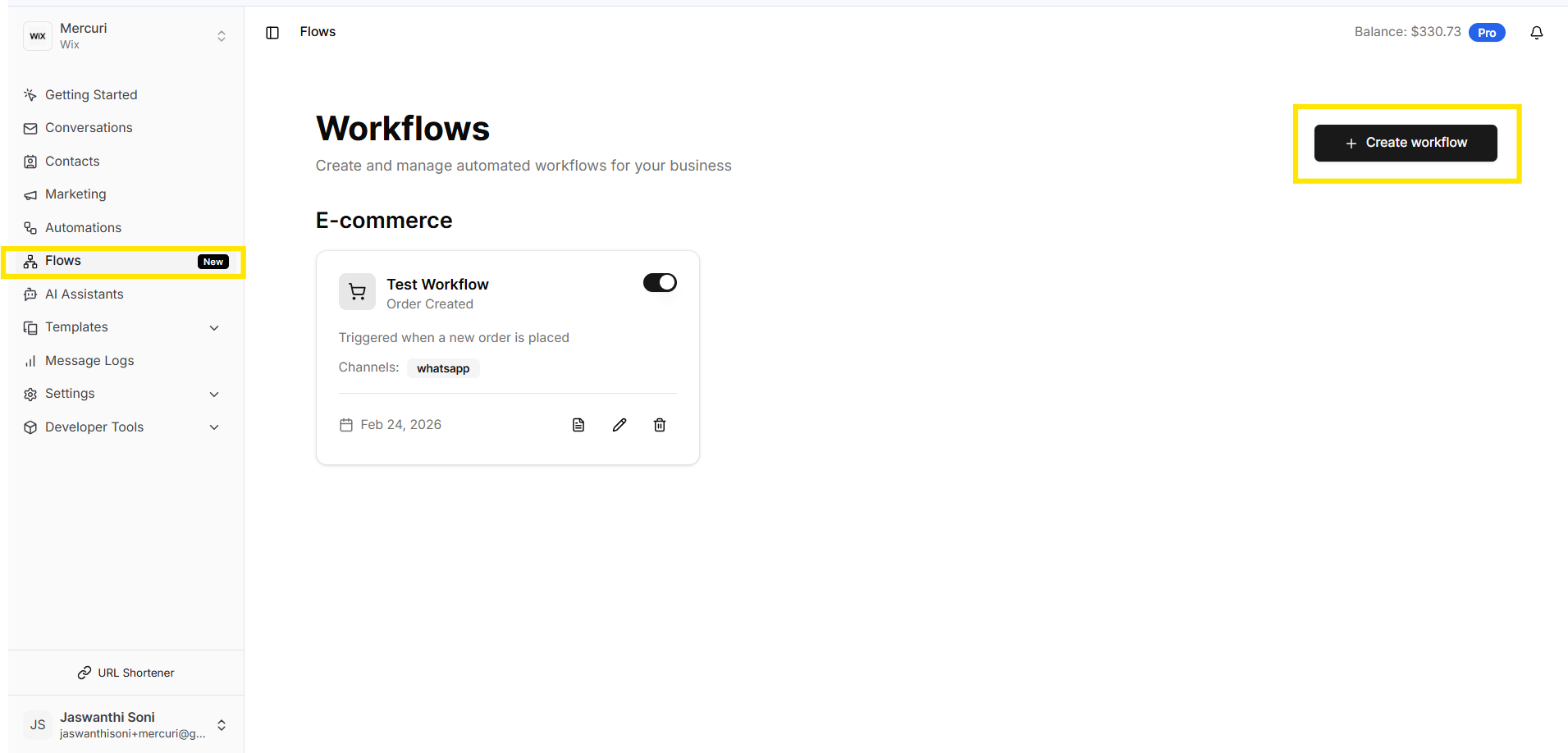
1. Go to **Flows** in your Mercuri dashboard.
2. Click **Create Workflow**.
***
#### Step 2: Name Your Workflow
At the top left, enter a **Workflow Name**.\
By default, the name may be automatically populated based on the selected trigger.
Examples:
* Order Confirmation Flow
* Cart Recovery Flow
* Booking Reminder Flow
Giving a clear name helps you easily identify the automation later.
***
#### Step 3: Add a Trigger
Every workflow starts with a **Trigger**.
A **trigger** is the event that starts the workflow.
To add a trigger:
1. Click **Triggers**.
2. Select the trigger based on your connected platform.
***
#### Step 4: Add Logic (Optional)
After selecting a trigger, you can either:
* Add an **Action** directly, or
* Add a **Wait or Condition (Logic Node)** to control how the workflow runs.
Logic helps you create **conditional workflows**, so messages are sent only when specific conditions are met.
To add logic:
1. Click the **Plus** icon present on the **Trigger** Node.
2. Select one of the available logic options.
**Condition**
A **Condition** allows the workflow to branch based on specific rules.
Examples:
* Send a message **only if payment status is unpaid**
* Send a notification **only if order value is greater than ₹1000**
When configuring a condition:
1. Select the **field** (for example, Payment Status).
2. Choose a **comparison rule** (equals, not equals, greater than, etc.).
3. Select the **value from the dropdown**.
`Example condition: Payment Status ≠ Paid`
This means the workflow will continue only if the payment is **not completed**.
4. You can also click **Add Condition** to include multiple rules.
5. After configuring the conditions, click **Save Conditions**.
***
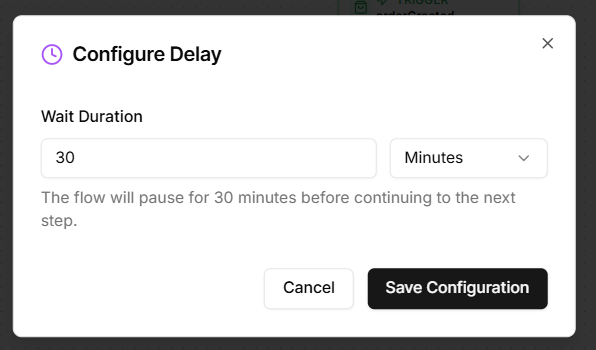
**Delay**
A **Delay** pauses the workflow for a specified amount of time before continuing.
Examples:
* Send a reminder **30 minutes after cart abandonment**
* Send a follow-up message **1 day after order creation**
This helps you control **when the next action should happen**.
***
#### Step 5: Add an Action
After the logic node (or directly after the trigger), you can add an **Action**, such as:
* Send a **WhatsApp message**
* Send an **SMS message**
The workflow will execute the action only when the trigger and conditions are satisfied.
{% tabs %}
{% tab title="Different Available Actions " %}
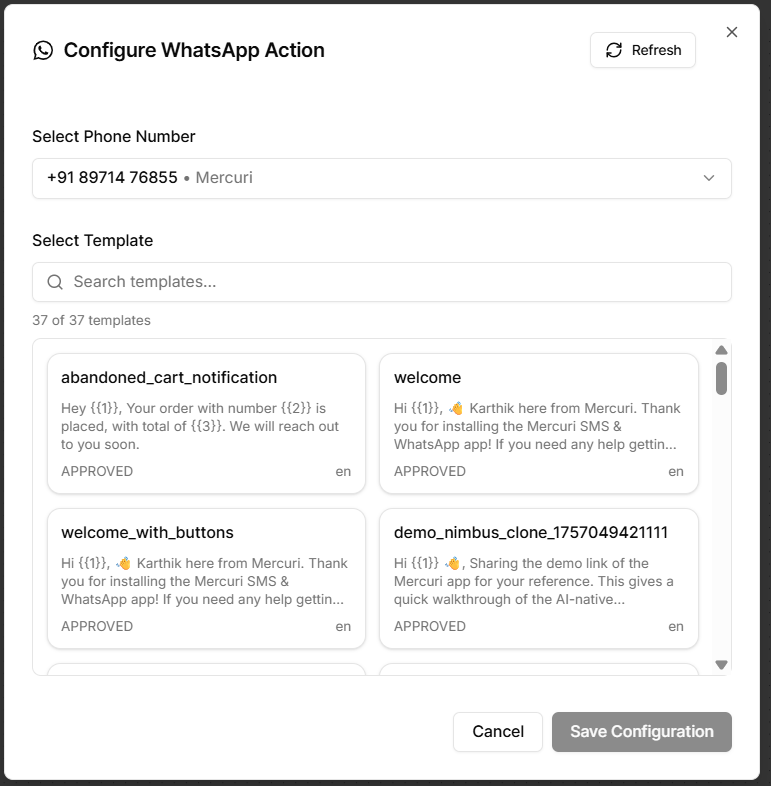
#### 1. Sending a WhatsApp Message
If you select **WhatsApp**, you will need to configure the message.
**Step 1: Select Phone Number**
Choose the **WhatsApp number** connected to your Mercuri account.\
This is the number from which the message will be sent to customers.
**Step 2: Select Template**
You will see a list of **approved WhatsApp templates**. These templates are pre-approved messages that can be sent automatically through workflows. You can use the **search bar** to quickly find a template.
**Step 3: Save Configuration**
After selecting the template:
1. Click **Save Configuration**.
2. The action will be added to the workflow.
***Once the workflow runs, the selected WhatsApp message will automatically be sent whenever the trigger occurs.***
***
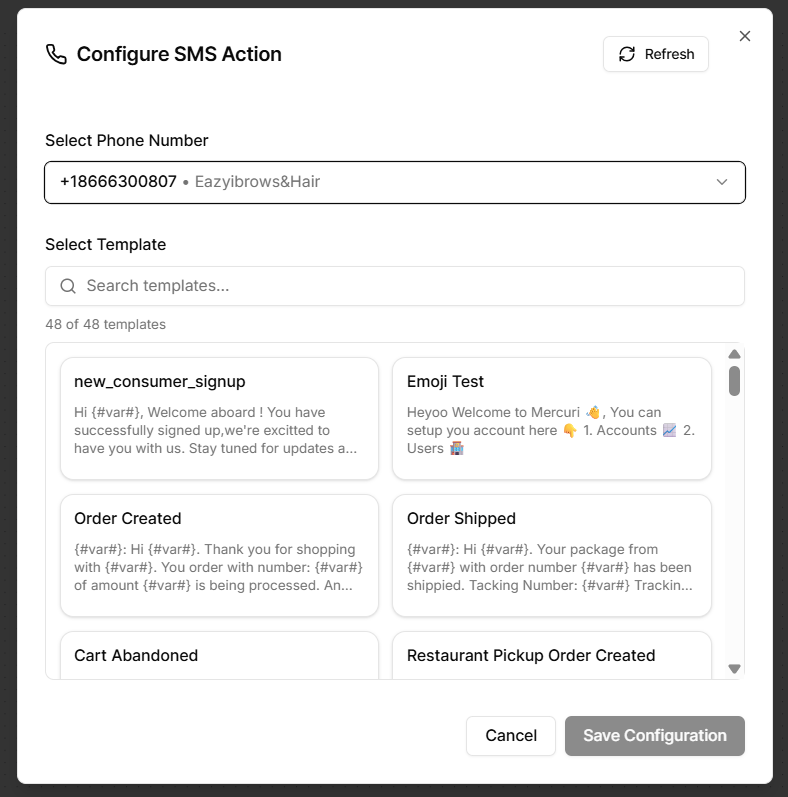
#### 2. Sending an SMS Message
If you select **SMS**, the process is similar:
1. Select **SMS** under Actions.
2. Choose the **SMS template** you want to send.
3. Click **Save Configuration**.
***The SMS will automatically be sent whenever the workflow is triggered.***
{% endtab %}
{% endtabs %}
***
#### Step 5: Managing the Workflow
After adding triggers, logic, and actions:
1. Turn **Workflow ON** to activate the automation.
2. Click **Save Changes** to apply the workflow.
Once saved and activated, the workflow will automatically run whenever the trigger conditions are met.
***
{% hint style="info" %}
⚠️ **Trigger Replacement Behavior**
A workflow can have **only one trigger at a time**.\
If you select a new trigger, the **previous trigger will automatically be replaced** by the newly selected one.
***For example:***\
If your workflow already uses **Order Created** as the trigger and you select **Cart Abandoned**, the **Order Created trigger will be overridden**.
Please review the trigger carefully before changing it to avoid accidentally modifying the workflow behavior.
{% endhint %}