> For the complete documentation index, see [llms.txt](https://docs.mercuri.cx/llms.txt). Markdown versions of documentation pages are available by appending `.md` to page URLs; this page is available as [Markdown](https://docs.mercuri.cx/features/templates/whatsapp-templates/create-different-marketing-templates-with-mercuri/how-to-create-a-media-carousel-marketing-template.md).
# How to create a Media Carousel Marketing Template
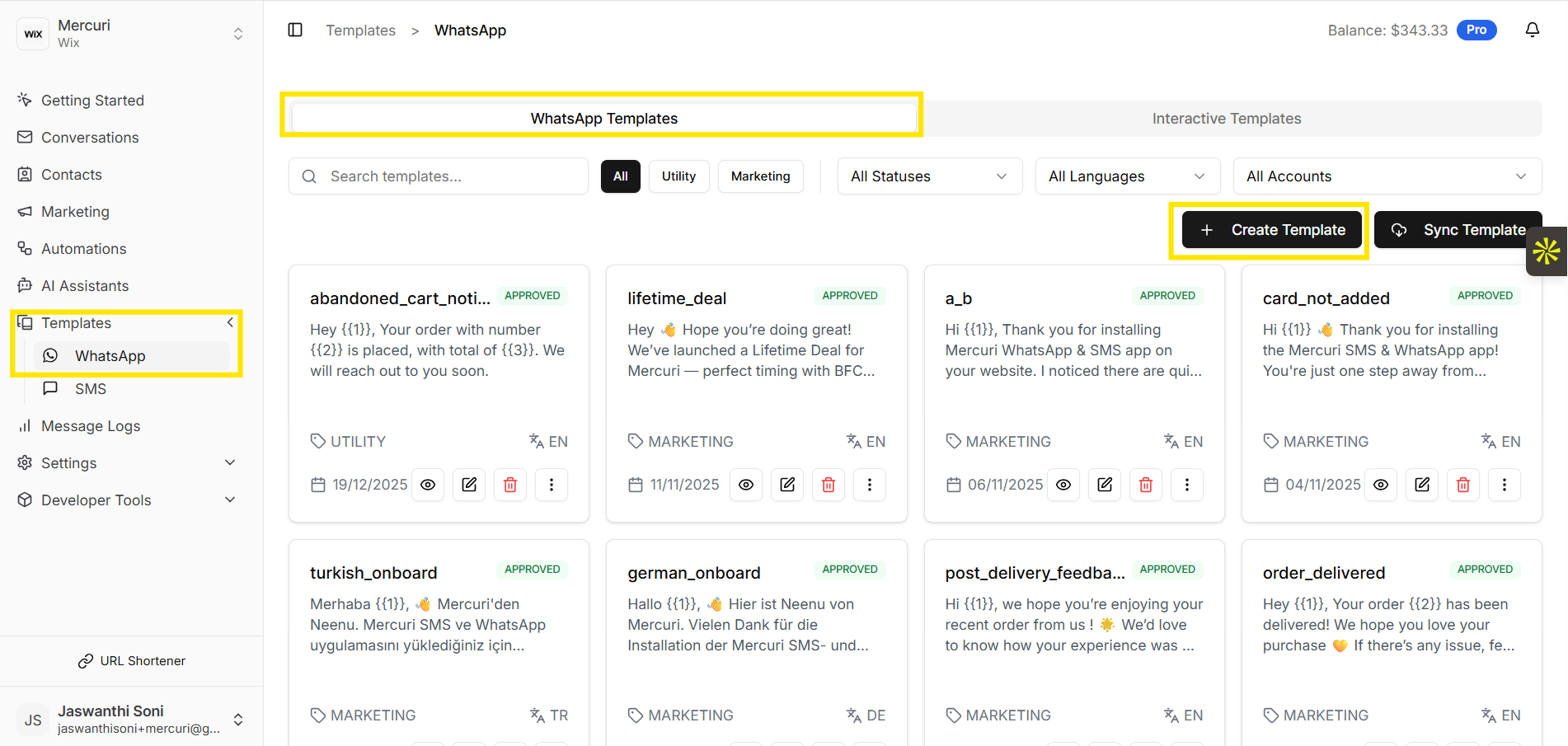
* Go to the **Templates> WhatsApp** section in the Mercuri dashboard.
* Under the **WhatsApp Template** tab, click on ***Create Template.***
* In the dialog box titled "***Create WhatsApp Template***", select the required WhatsApp account and click on the ***"Create Template "*** button.
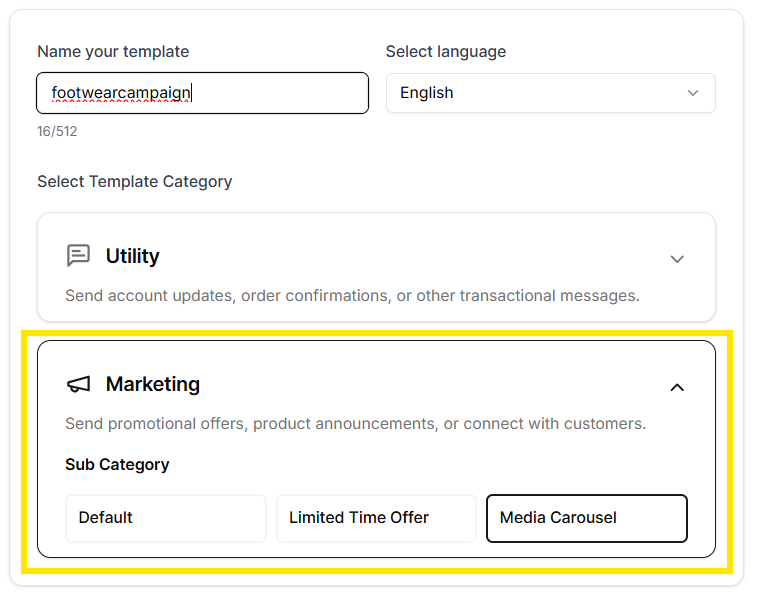
* Fill in the Template details like template name, language.
* Now, select **Marketing** as the template category and choose the **Media Carousel** sub-category.
* **Body (Mandatory):** Enter the main message text that appears above the carousel. This text introduces the content shown in the carousel and cannot be left empty.
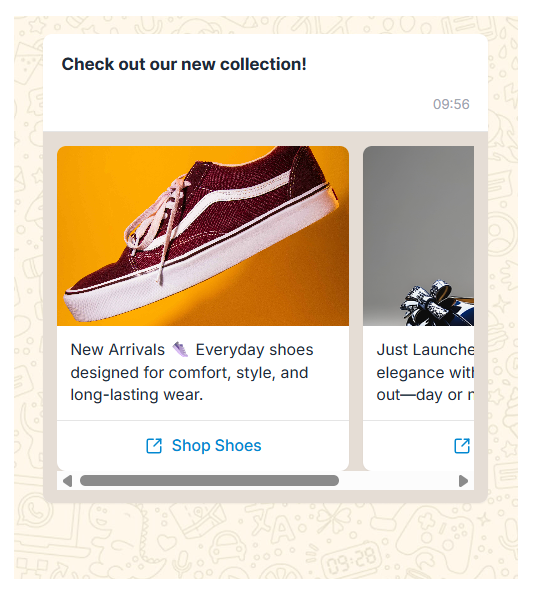
* **Media Carousel Cards:** You can add between **2 and 10 cards**. Each card represents one product or offer.
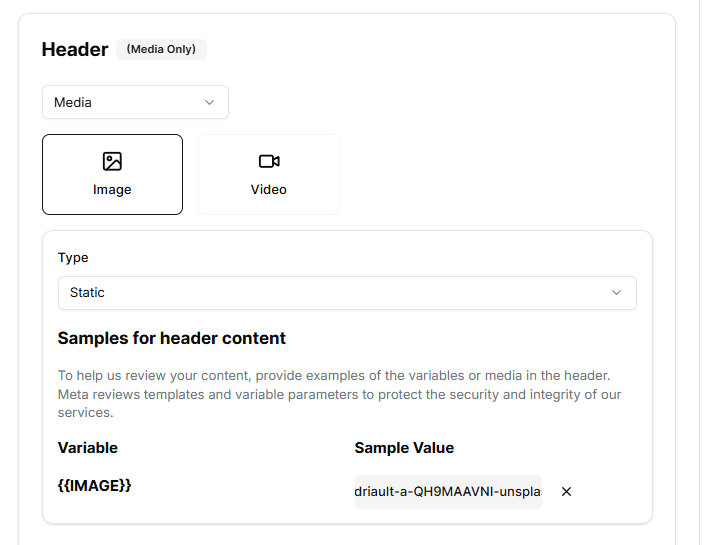
* **Header (Media Only – Mandatory for each card):**
* Choose whether you want to add an **image or a video** for the card.
* Select the media type as **static or dynamic**, based on your requirement.
* Upload a **sample image or video** so it can be reviewed.
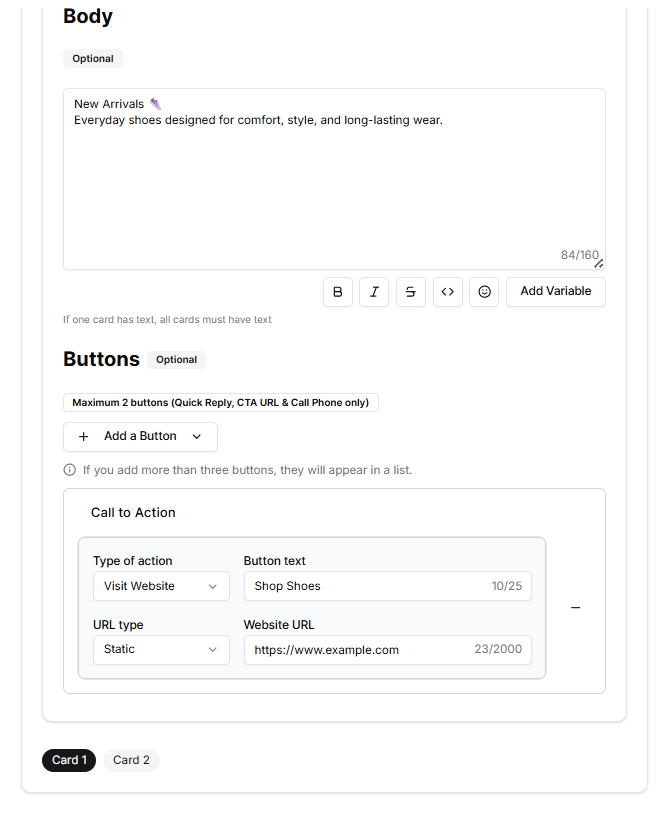
* **Card Body (Optional):**
* Add text to explain what the image or video is about.
* Use this section to highlight important details such as pricing, features, or offers.
* **Buttons (Optional):**
* Add up to **2 buttons per card**.
* Supported button types include:
* **Quick Reply**
* **CTA URL**
* **Call Phone**
* Use **Add Card** to include more cards or **Remove Card** to delete any card.
* Review all cards, media, text, and buttons.
* Click on **Create Template** to submit the template for approval.