> For the complete documentation index, see [llms.txt](https://docs.mercuri.cx/llms.txt). Markdown versions of documentation pages are available by appending `.md` to page URLs; this page is available as [Markdown](https://docs.mercuri.cx/features/templates/whatsapp-templates/creating-your-first-whatsapp-template.md).
# Creating Your First WhatsApp Template
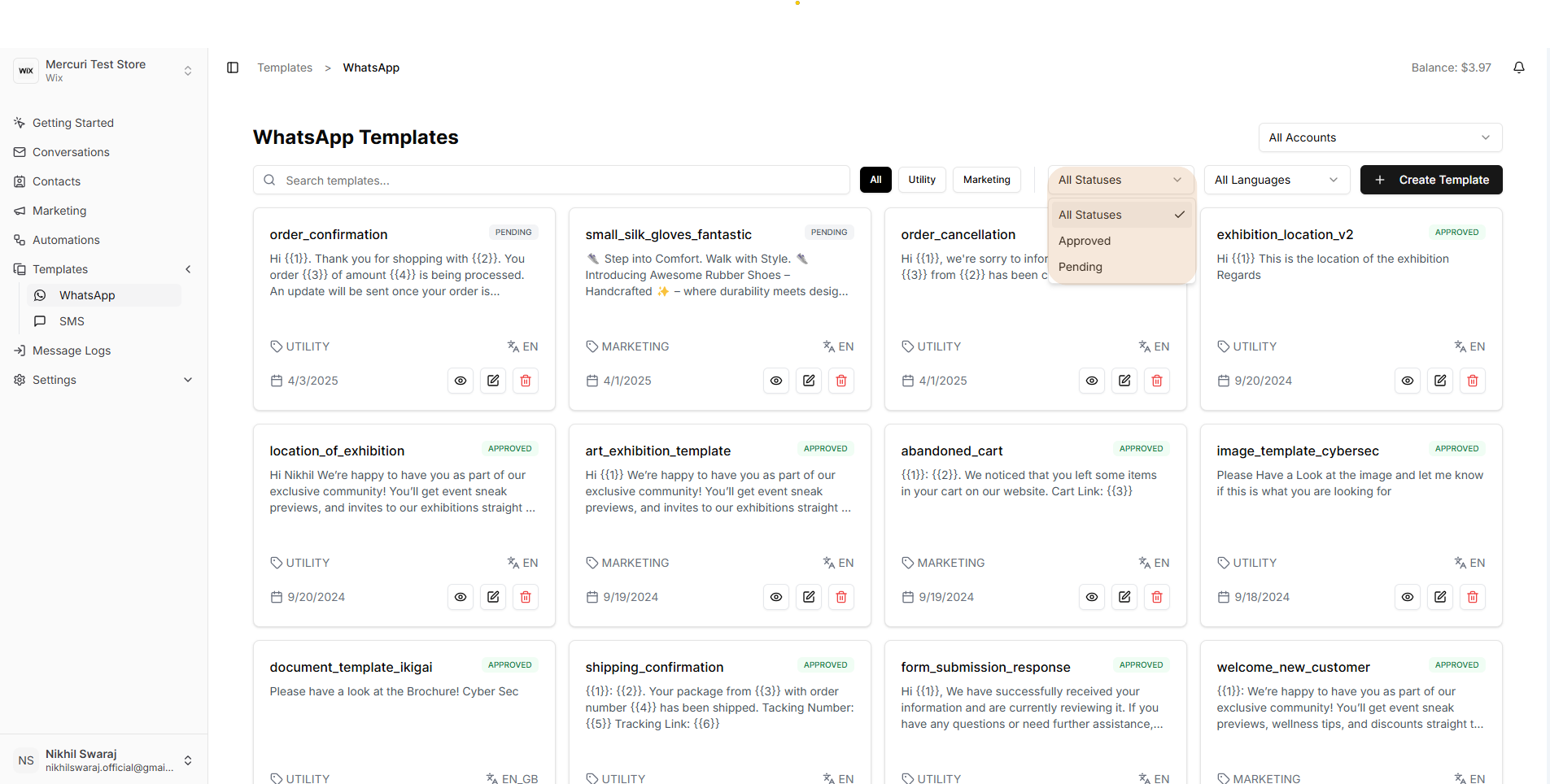
WhatsApp message templates are pre-approved message formats required for sending notifications, alerts, and promotions via the WhatsApp Business API.
### Types of WhatsApp message templates
* **Transactional/Utility:** Order updates, appointment confirmations, and shipping alerts.
* **Marketing:** Special offers, discounts, and event announcements.
### Template Structure
| Section | Required | Description | Example |
| ------- | -------- | ------------------------------------------------------------------------------------------------------------------------------------------------------------------------------------------------------------------------------ | ------------------------------------------------------------------- |
| Header | optional | Used for key highlights such as order numbers or promotions. | 📦 Your Order #{{1}} has shipped! |
| Body | required |
The main message with placeholders (e.g., {{1}}, {{2}}).
Must be clear, concise, and follow WhatsApp's content policies.
| Hello {{1}}, your order will arrive on {{2}}. Track it here: {{3}}. |
| Footer | optional | Short closing text, such as a sign-off or disclaimer | Thank you for choosing Mercuri! |
| Buttons | optional |
Add interactivity with:
Quick Reply: Allows customers to respond with pre-defined options.
Call-to-Action (CTA): Opens a URL or dials a phone number.
| \[Track Order] \[Contact Support] |
***
### How to create a WhatsApp template in Mercuri
1. Log in to your ***Mercuri dashboard*** at
2. Navigate to ***Templates > WhatsApp.***
3. Under the **WhatsApp Template** tab, click on ***Create Template,*** or if you want to know how to edit the existing template, [***click here***](/features/templates/whatsapp-templates/creating-your-first-whatsapp-template.md#how-to-edit-existing-whatsapp-templates)**.**
4. In the dialog box titled "***Create WhatsApp Template***", select the required WhatsApp account and click on the ***"Create Template "*** button.
4. Fill in the template details:
* **Template Name**: A unique identifier for internal use.
* **Language**: Select the language of the template.
* **Category**: Choose the required category for the template (*Marketing, Utility).*
* **Message content :**
* ***Header(optional)***: Add a title or media.
* ***Body***: Write your message text. You can use placeholders (variables) if needed.
* ***Footer(optional)***: Add a short note at the bottom.
* ***Buttons(optional)***: Add call-to-action buttons like "***Quick Reply***" or "***Call to Action***".
6. A template Preview will appear in the right corner, showing how your message will look.
7. Click "***Create Template***" to submit it for WhatsApp review and approval.
***
### Where to track the status of the WhatsApp template?
Whatsapp Template Approval Status
1. Go to to ***Templates > WhatsApp*** in the dashboard.
2. You can view the status directly in the listed whatsapp templates or use the "***All Statuses***" filter on whatsapp templates section to refine your search.
**Template Status Types:**
* **Approved**: The template is approved and ready for use.
* **Rejected**: The template was rejected. Edit the template to correct any issues and resubmit it for review.
* **Pending**: The template is under review by WhatsApp and awaiting approval.
***
### How to edit existing WhatsApp templates?
* Navigate to **Templates > WhatsApp** in your dashboard.
* Select the template you want to edit and click the **edit icon**.
* You can modify all components **except** the **language** and **category**.