# Understand WhatsApp Template components

***Explore Different WhatsApp Template Components***&#x20;

<table data-view="cards"><thead><tr><th></th><th></th><th data-type="content-ref"></th><th></th><th data-hidden data-card-cover data-type="files"></th></tr></thead><tbody><tr><td><mark style="background-color:blue;"><strong>Template Categories</strong></mark></td><td><sub><em>Understand different WhatsApp Template categories:</em><em> </em><em><strong>Marketing , Utility , Authenticatio</strong></em><em>n</em></sub></td><td><a href="#id-1.-template-category">#id-1.-template-category</a></td><td></td><td><a href="https://392978341-files.gitbook.io/~/files/v0/b/gitbook-x-prod.appspot.com/o/spaces%2FsZtOBCP9JV8XEWJpUU4t%2Fuploads%2Fx7QrAW60iYgenaGAulx3%2Ftemplate%20category%201%20.png?alt=media&#x26;token=c01bfc30-5dba-404e-84e7-ca01c11b806a">template category 1 .png</a></td></tr><tr><td><mark style="background-color:blue;"><strong>Header</strong></mark></td><td><sub><em>Explore different media types available .Understand when and how to use s</em><em><strong>tatic and dynamic media type.</strong></em></sub></td><td><a href="#id-2.-template-header">#id-2.-template-header</a></td><td></td><td><a href="https://392978341-files.gitbook.io/~/files/v0/b/gitbook-x-prod.appspot.com/o/spaces%2FsZtOBCP9JV8XEWJpUU4t%2Fuploads%2FrDsMRCfY4lUUsMYMDz86%2Fheader2.png?alt=media&#x26;token=b536c449-1b3f-4e52-8fae-6c256defbe2f">header2.png</a></td></tr><tr><td><mark style="background-color:blue;"><strong>Template Buttons</strong></mark></td><td><sub><em>Explore different</em><em> </em><em><strong>template buttons</strong></em><em> </em><em>to enhance customer experience and engagement.Understand when to use Static and Dynamic URLs for CTA Buttons</em></sub></td><td><a href="#id-3.-template-buttons">#id-3.-template-buttons</a></td><td></td><td><a href="https://392978341-files.gitbook.io/~/files/v0/b/gitbook-x-prod.appspot.com/o/spaces%2FsZtOBCP9JV8XEWJpUU4t%2Fuploads%2FJbOsHpNueQXBLnxSEJUS%2Fbuttons2.png?alt=media&#x26;token=1871536b-0add-4cde-bf4c-3d08e5d37b9c">buttons2.png</a></td></tr></tbody></table>

***

### 1. Template Category

WhatsApp classifies the templates into 3 categories :&#x20;

* **Marketing**&#x20;

Used for **promotional or upsell** messages such as offers, product recommendations.

**Example Use Case:** Special discount offer

**Sample Message:**`🎉 Hey {{1}}, enjoy 20% off on your next purchase with code WELCOME20!`\
`Offer valid till {{2}}.`\
`Don’t miss out — click below to shop now!`\
`[Shop Now]`

***

* **Utility**

Used to send **important updates or information** that customers need, such as order confirmations, reminders, account updates, or shipping notifications.

These messages are generally triggered based on user actions.

**Example Use Case:** Shipping confirmation

**Sample Message:**`Hello {{1}}, your order #{{2}} has been shipped via {{3}}.`\
`Tracking number: {{4}}`\
`Expected delivery in 3–5 business days.`\
`Tap below to track your package.`\
`[Track Now]`&#x20;

***

* **Authentication**

Used for sending **OTP codes** and **login verification messages** securely.

* **Example Use Case:** One-time password for login
* **Sample Message:** `Your login code is: {{1}}`\
  `This code is valid for 10 minutes.`\
  `Do not share it with anyone.`&#x20;

***

### 2. Template Header

The **header** is the top section of a WhatsApp message template and can include either **text** or **media** to add context or emphasis to your message.

<figure><img src="https://392978341-files.gitbook.io/~/files/v0/b/gitbook-x-prod.appspot.com/o/spaces%2FsZtOBCP9JV8XEWJpUU4t%2Fuploads%2Fl8pogDMRQdQL25q5Aney%2Fimage.png?alt=media&#x26;token=7eaffa85-d924-4cd9-b5ab-ab9e1711de05" alt=""><figcaption></figcaption></figure>

1. **Text Header**

* A simple line of text that highlights the main message.
* **Only one variable** in the text header is allowed(e.g., customer name or order ID)

2. &#x20;**Media Header**

* Supports **images, videos, documents**, or **locations** to visually enhance the message.

#### Media Type

| Aspect          | Static Media                                               | Dynamic Media                                                   |
| --------------- | ---------------------------------------------------------- | --------------------------------------------------------------- |
| Definition      | The same media (image, video, etc.) is sent to every user. | The media changes based on the recipient or event.              |
| Use case        | Promotional banner, brand logo, standard brochure.         | Product image based on user’s order, personalized invoice, etc. |
| Personalization | No personalization ,same content for all.                  | Highly personalized ,tailored for each user.                    |
| Media support   | Supports all media (images,videos,documents,location)      | As of now , wix and shopify support only dynamic images         |

{% hint style="info" %}
While the WhatsApp Business API supports dynamic media (image, video, document, location), **platforms like Wix and Shopify currently allow only dynamic image headers.**\
Dynamic **videos, documents, and locations are not supported on these platforms** at the moment.
{% endhint %}

<table><thead><tr><th>Media Type </th><th>Max Size</th><th data-hidden></th></tr></thead><tbody><tr><td>Images</td><td>5 MB</td><td></td></tr><tr><td>Videos</td><td>16 MB</td><td></td></tr><tr><td>Documents </td><td>100 MB</td><td></td></tr></tbody></table>

#### Steps to add Static and Dynamic Media

{% tabs %}
{% tab title="Static media" %}
**Use case**

*A restaurant wants to notify all customers about a festive offer.*

***Header Image:** Diwali offer banner (`diwali_offer.png`)*

* ***Usage:** The same banner is shown to all users.*
* ***Result:** Everyone receives the same image, regardless of their order or preferences.*

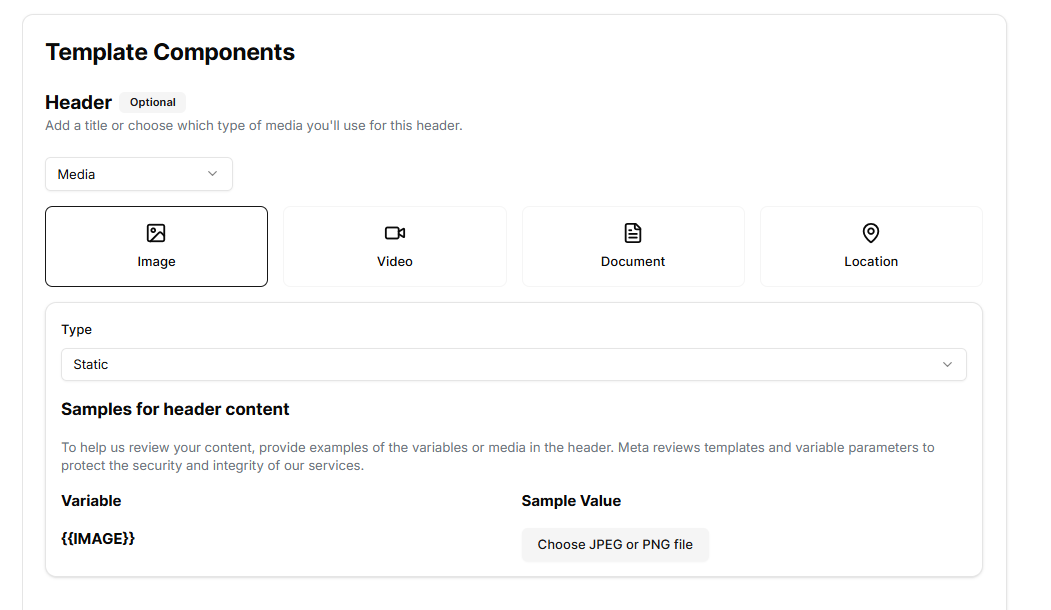
**Steps to Add a Static Image in the header :**&#x20;

1. Select **Media** as the header from the drop-down. Select the required media (*here image is selected).*
2. Set the type to **Static.**
3. Upload a sample image in the sample value box&#x20;

<figure><img src="https://392978341-files.gitbook.io/~/files/v0/b/gitbook-x-prod.appspot.com/o/spaces%2FsZtOBCP9JV8XEWJpUU4t%2Fuploads%2Fh2yM6KjlXidLpkxFgeqW%2Fimage.png?alt=media&#x26;token=53e7dea6-279e-48da-a334-77eeb9c39430" alt=""><figcaption><p>Static Image in header</p></figcaption></figure>
{% endtab %}

{% tab title="Dynamic Media" %}
**Use case**&#x20;

A D2C skincare brand wants to send shipping updates with a picture of the exact product the customer ordered.

**Header image**: Image of the exact serum that the customer has ordered.

**Steps to Add a Dynamic Image in the header :**&#x20;

1. Select **Media** as the header from the drop-down. Select the required media (*here image is selected).*
2. Set the type to **Dynamic.**
3. Set the variable value as **Product Image URL** and upload a sample image in **the sample value** section.

<figure><img src="https://392978341-files.gitbook.io/~/files/v0/b/gitbook-x-prod.appspot.com/o/spaces%2FsZtOBCP9JV8XEWJpUU4t%2Fuploads%2FELmUMruAcLndAphkq9fu%2Fimage.png?alt=media&#x26;token=ed0897b1-b509-4a38-bb87-37cee2d4ab8b" alt=""><figcaption><p>Dynamic Image as header</p></figcaption></figure>
{% endtab %}
{% endtabs %}

***

### 3. Template Buttons

<figure><img src="https://392978341-files.gitbook.io/~/files/v0/b/gitbook-x-prod.appspot.com/o/spaces%2FsZtOBCP9JV8XEWJpUU4t%2Fuploads%2FLh60EiSxYDIQ69aGKV9f%2Fimage.png?alt=media&#x26;token=58ebecee-5742-4f9c-b90e-074603e66761" alt=""><figcaption><p>Different Types of Available buttons </p></figcaption></figure>

Adding buttons to a WhatsApp template enhances user experience by enabling **easy, one-tap actions** directly from the message.

For example, instead of just sending shipment details in text, including a **“Track Now”** button allows the user to **directly open the tracking page**, improving efficiency and engagement.

#### Types Of Template Buttons

* Quick Reply Button
* Call to Action Button

#### Quick Reply Buttons

*Purpose*

Quick reply button provides predefined options for users to choose from in response to a message. Ideal for gathering information, providing quick answers, or guiding users through a workflow.

**Examples**

* "Yes, I’m interested."
* "Change Delivery Time"
* "Cancel Booking"

{% hint style="info" %}
One can include a maximum of ***3 Quick Reply Buttons*** per Template&#x20;
{% endhint %}

#### Call to Action Buttons

*Purpose*

To **redirect users to take a specific action,** such as visiting a website, calling a number, or copying an offer code.

*Options*

1. **Visit Website**

* Opens a link in the browser.
* Can be **static** (same for all users) or **dynamic** (personalized per user, e.g., `https://track.com/{{1}}`). [ *\[Click here to understand the Difference between static and dynamic URLs\]*](#different-url-types-in-call-to-action-buttons)

2. **Call Phone Number**

* Opens the phone dialer with a **predefined number**.
* Helpful for customer support, reservations, or service inquiries.

3. **Copy Offer Code**

* Let users **copy a promo code** with a tap, without needing to select or highlight.

{% hint style="info" %}
One can include a maximum of ***2 Call-to-Action buttons*** per template.
{% endhint %}

***

### Different URL Types in Call-to-Action Buttons

When setting up **Call-to-Action** (CTA) buttons in WhatsApp templates, URLs help guide users to specific web pages.&#x20;

These URLs can be categorized into two types: **Static URLs** and **Dynamic URLs**, depending on whether the link remains the same for all users or varies based on user-specific data.

#### **Static URLs**

A **Static URL** is a fixed web address that **remains the same for all users**. It does not change based on user inputs or user-specific actions.

**Use Case**

Use Static URLs when:

* You want to direct all users to a **common page** like:
  * Registration page
  * Contact Us page
  * FAQs or Help Center

**Example**

`https://example.com/register`\
This URL will always take users to the **same registration page**, regardless of who clicks it.

***

#### **Dynamic URLs**

A **Dynamic URL** contains **placeholders** that are replaced with **user-specific values** when the message is sent. This allows each recipient to receive a personalized link.

**Use Case**

Use Dynamic URLs when:

* The destination URL varies by user, such as:
  * Order tracking page
  * Appointment confirmation page
  * Personalized offer or invoice link

**Example**

`https://example.com/{{1}}`\
Here, `{{1}}` is a **dynamic parameter** that gets replaced with a unique value, such as an order ID or user ID.

* For User A: `https://example.com/ORDER12345`
* For User B: `https://example.com/ORDER67890`

This enables each user to access **personalized content** securely and directly.


---

# Agent Instructions: Querying This Documentation

If you need additional information that is not directly available in this page, you can query the documentation dynamically by asking a question.

Perform an HTTP GET request on the current page URL with the `ask` query parameter:

```
GET https://docs.mercuri.cx/features/templates/whatsapp-templates/understand-whatsapp-template-components.md?ask=<question>
```

The question should be specific, self-contained, and written in natural language.
The response will contain a direct answer to the question and relevant excerpts and sources from the documentation.

Use this mechanism when the answer is not explicitly present in the current page, you need clarification or additional context, or you want to retrieve related documentation sections.