> For the complete documentation index, see [llms.txt](https://docs.mercuri.cx/llms.txt). Markdown versions of documentation pages are available by appending `.md` to page URLs; this page is available as [Markdown](https://docs.mercuri.cx/features/templates/whatsapp-templates/create-different-marketing-templates-with-mercuri/how-to-create-a-limited-time-offer-marketing-template.md).
# How to create a Limited Time Offer marketing template
### **Steps**
{% embed url="" %}
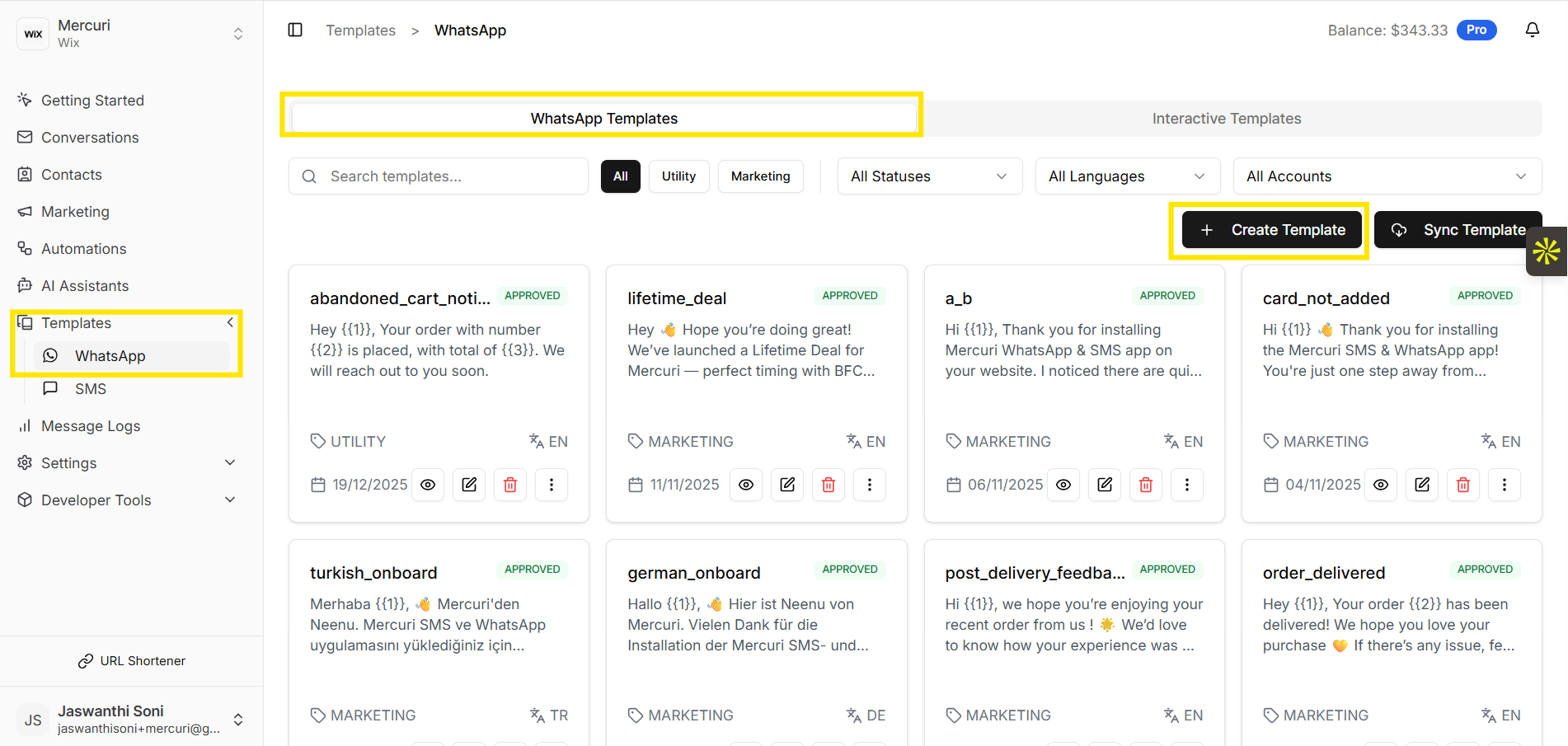
* Go to the **Templates> WhatsApp** section in the Mercuri dashboard.
* Under the **WhatsApp Template** tab, click on ***Create Template.***
* In the dialog box titled "***Create WhatsApp Template***", select the required WhatsApp account and click on the ***"Create Template "*** button.
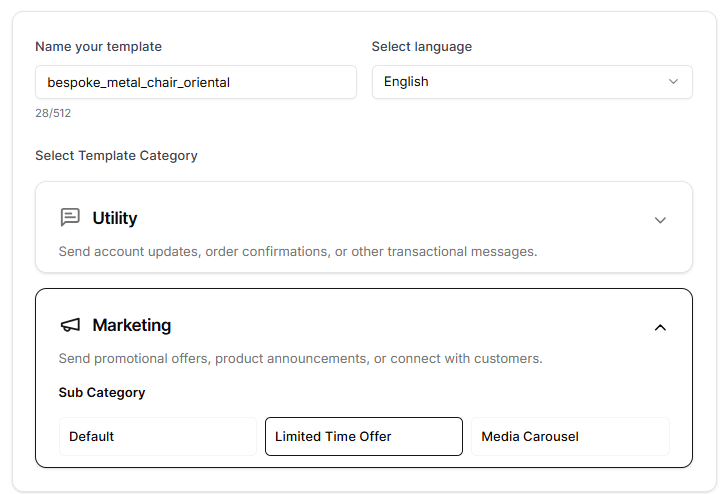
* Fill in the Template details like template name, language.
* Now, select **Marketing** as the template category and choose the **Limited Time Offer** sub-category.
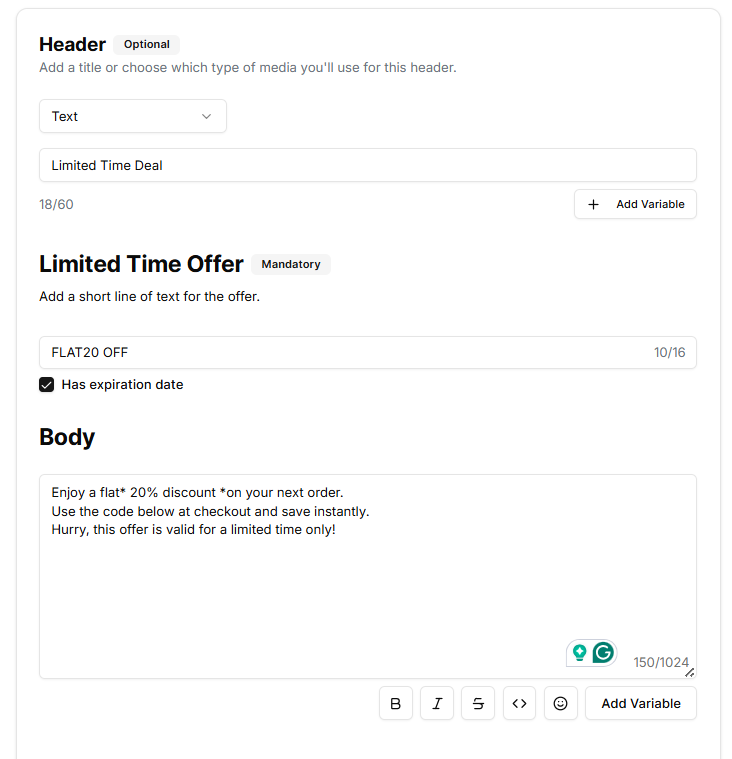
* **Header (Optional):** Add a short title or choose a media type for the header.
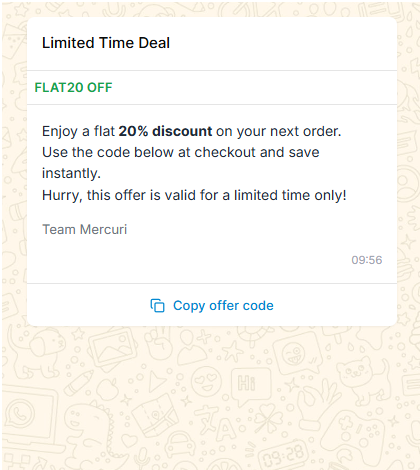
* **Limited Time Offer (Mandatory):**
* Enter a **short line of text** describing the offer. This field is mandatory and cannot be left empty. You can add up to **16 characters**.
* Enable ***Has expiration date*** if the offer is valid only until a specific date.
**Note:** *The expiration date can be selected later when sending the campaign or just before sending the message from the Conversation Inbox.*
* **Body:**
* Enter the main message explaining the offer.
* Include details such as the discount, conditions, or usage instructions.
* You may use formatting options or variables if needed.
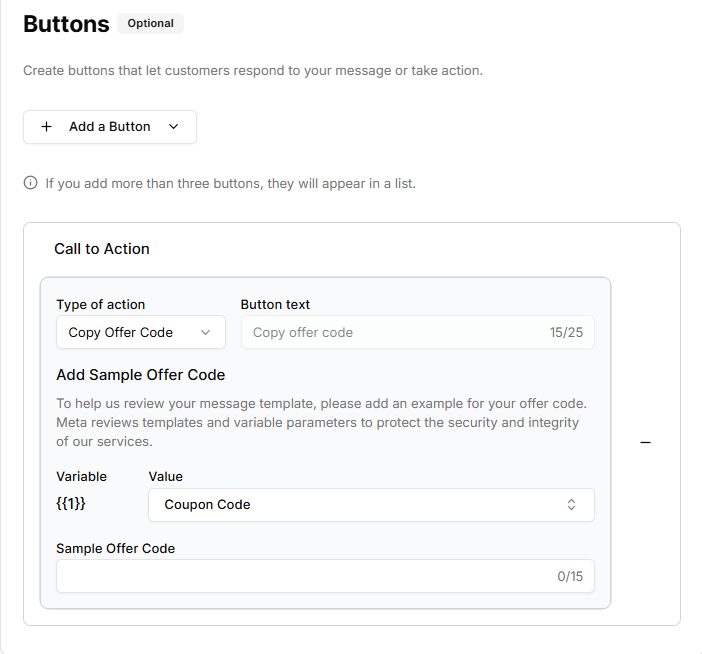
* **Buttons (Optional):**
* Click **Add a Button** to allow users to take action.
* Supported button types include:
* **Copy Offer Code**
* **Visit Website**
* **Call Phone**
* **Quick Reply**
* If you add a ***Copy Offer Code***** button**, select ***Coupon Code*** as the **variable** from the dropdown, and provide a sample offer code for Meta review.
* Review all the entered details to ensure accuracy.
* Click **Create Template** at the top to submit the template for approval.