> For the complete documentation index, see [llms.txt](https://docs.mercuri.cx/llms.txt). Markdown versions of documentation pages are available by appending `.md` to page URLs; this page is available as [Markdown](https://docs.mercuri.cx/features/templates/whatsapp-templates/whatsapp-interactive-templates/use-cases-whatsapp-interactive-templates/cta-url-button.md).
# CTA URL Button
### **What Are CTA URL Button Templates?**
* **CTA (Call-To-Action) URL Button** templates on Mercuri allow brands to send WhatsApp messages with buttons that redirect users to a website or custom link.
* This makes it easy for customers to take action instantly—such as visiting a product page, booking a demo, or checking order status.
* These templates help businesses improve conversions, reduce confusion, and guide customers directly to the intended online destination.
Typical CTA actions include:
* **Visit Website** (product pages, landing pages, offer pages)
* **Track Order** (order tracking link)
* **Book Appointment** (calendar or scheduling page)
* **Make Payment** (payment gateway link)
* **Download Resource** (PDF, brochure, app link)
***
#### **Use Case: Drive Users to Book a Demo**
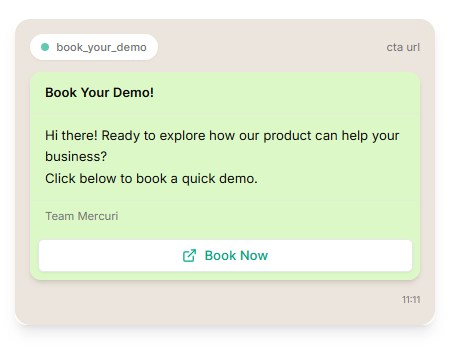
Send a CTA message that guides customers to your demo booking page with one tap.
**Message Example:**
> Hi there! Ready to explore how our product can help your business? Click below to book a quick demo.
>
> **Button:**
>
> Book a Demo → Redirects to your scheduling URL
**Why it works:**
* Reduces friction and steps for the user
* Improves lead conversion rate
* Encourages immediate action
**Industry examples:**
* SaaS & Tech
* Education & Coaching
* Healthcare
* E‑commerce
***
#### How to Create a CTA URL Button Template on Mercuri
{% embed url="" %}
1. Log in to your **Mercuri account**
2. Go to **Templates → WhatsApp** in the left-side panel
3. Click on the **Interactive Templates Tab**
4. Select **Create Interactive Template**
5. The template creation page will open
6. Enter a **short and descriptive template name.**
7. From the dropdown, select the interactive message type as **CTA URL.** This format enables URL redirection buttons in your WhatsApp message.
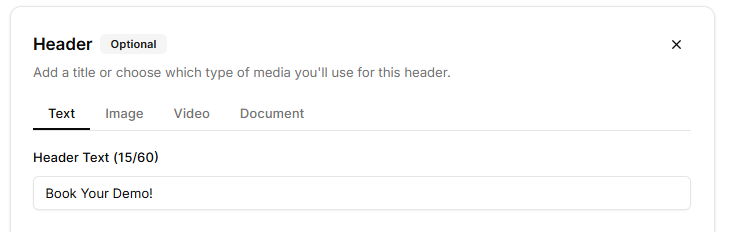
8. **(Optional)Add a Header**
You can choose:
* **Text** (e.g., "Limited-Time Offer", "Book Your Demo")
* **Image**
* **Video**
* **Document (PDF)**
9. **Add Your Body Message Content:** Write a clear message explaining what the user should expect when clicking the button.
**Example:**
> Hi there! Ready to explore how our product can help your business? Click below to book a quick demo.
10. **(Optional) Add a Footer:** This can include disclaimers, support details, or additional context.
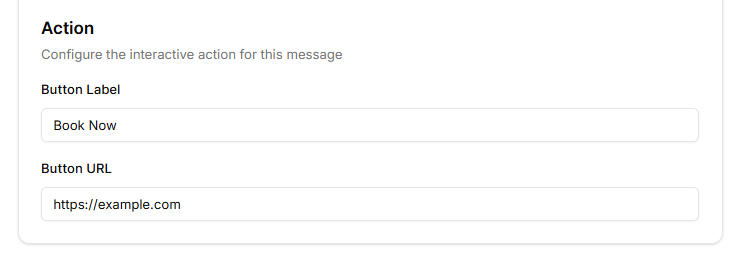
11. **Add the CTA URL Button:** Under the **Action** section, a button block will appear.
Fill in the following fields:
1. **Button Label:** This is what users will see on the WhatsApp message button.
**Examples**: Book Now
2. **Button URL:** Paste the link where the button should redirect the user.
3. Once done, review the template and click **Create** to submit it for WhatsApp approval.